iPhone 4S / 5


While Apple has indeed been giving some developers access to a device known as the iPhone 4S — an iPhone 4 with upgraded internals — BGR has independently confirmed that the next-generation iPhone will not merely be an upgraded iPhone 4 as had been previously rumored (This means that we’ll probably be seeing an iPhone 5 instead of an iPhone 4S).  We have been told by a reliable source to expect a radical new case design for the upcoming iPhone, though we have not been given any additional details surrounding the design of the new iPhone case. What about a release, then? The consensus is that Apple is going to announce the next-generation iPhone at the company’s annual September event, traditionally focused on iPods, but we have heard it’s quite possible Apple will break tradition. According to our source, Apple may hold an event in the beginning or middle of August to announce the new iPhone, with availability to follow in the last week of August. We’re not sure if that means the iPod event will be moved up slightly, or if this will be an iPhone-specific event. Thisismynext reported earlier that the upcoming iPhone 5 would feature a new teardrop-shaped case design. (Not so sure about this yet)

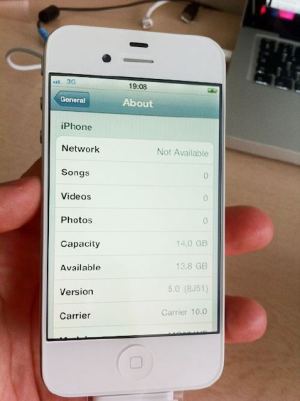
(In case some of you are wondering about the picture and how it looks just like a white iPhone 4, notice that the screen is larger and the screen edge is on the device edge unlike previous models)

Posted in iPhone | Tagged , | Leave a comment

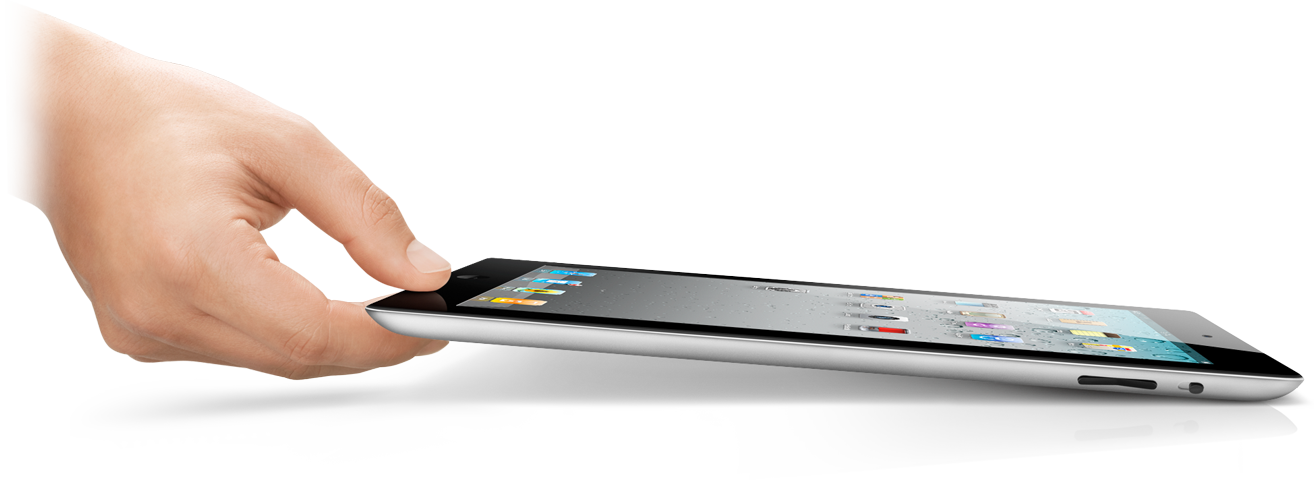
iPad 2 Jailbreak Update


Dear all iPad 2 users, please be very aware of the fact that recently there have been many claims of available jailbreaks for the iPad 2. These claims are malicious viruses and snippets of code that will actually harm your device instead of jailbreak it.

Do not fall for any such tricks and always remember that jailbreaks and unlocks are always free of charge, any site trying to sell you software that provides these services are just trying to rip you off.

In any case, we have received word that jailbreakme.com is being updated to support jailbreaking the iPad 2, however this will only be for iOS 4.3.3, so any users happy with there iOS 5b1 are recommended to roll back to 4.3.3 in order to jailbreak their device. Moreover, c0mex, the hacker behind the userland jailbreak (jailbreakme.com), tweeted that he has reduced the time it takes to jailbreak devices using jailbreakme.com

For more news about the upcoming jailbreak for iPad 2, stay tuned!

Posted in iPad | Tagged , , | Leave a comment

Say Goodbye to Drunk Texting


In Ke$ha’s Take It Off, “Got my drunk text on, I’ll regret it in the morn…” reminds us all of that one time we’ve texted something to someone while we drunk and regretted it. Fortunately for you, you can now say goodbye to drunk texting!

A new app has just released in cydia called TUI Checkpoint, This app will do the following : if you are going to write a message then the app will stop you if you were drunk through a series of “clarity of evidence” so you can’t write a message that contains ugly words to a nice person.

If you are going to write a message the app will make three tests to be sure if you are drunk or not, and if you were unable to complete them correctly the app will give you error, finally you can buy TUI Checkpoint from Cydia via BigBoss repo for $2.99, but don’t worry, soon (like in a couple of days), you’ll be able to get this app for free from the xsellize repo.

Posted in iPhone | Tagged , , , , , | 2 Comments

Create Custom Ringtone for iPhone


Ever since the launch of the iPhone in 2007, one of the major drawbacks was that you couldn’t create your own ringtone, and could only buy ringtones. Let’s put this problem to rest once and for all.

Here is a step by step guide on how to do just that:

Step 1:

Launch iTunes and pick a song you want to convert to ringtone

Step 2:

Right-click on the song and click “Get Info” to view the song properties

Step 3:

Select “Options” tab. Check and fill in the “Start time” and “Stop time” to extract the portion of song you want to create as ringtone. Ensure the length is not longer than 30 seconds. Otherwise, iTunes will not recognize it as a ringtone. When you are ready, click “OK” to confirm.

Step 4:

Again, right-click on the song and select “Create ACC Version”.

Step 5

iTunes then automatically extracts the portion of song you have instructed in the previous step. The new song file is just 30-sec in length. That’s the song you work on from step 6 and onwards.

Step 6

Next, right-click on the song and select “Show in Finder”. This will launch Finder and locate the song file you just created.

Note: For Windows user, you should choose “Show in Windows Explorer” instead.

Step 7

Rename the file extension from “.m4a” to “.m4r”.

Step 8

Next, go back to iTunes. Right-click on the song you have created and select “Delete”.

Step 9

Click “Remove” to confirm the removal and then click “Keep File” when you’re prompted. This instructs iTunes to remove the song (the 30 sec version) from iTunes library and keep the actual file.

Step 10

Go back to Finder and double-click on the ringtone file (.m4r) you have just renamed. The ringtone will automatically add it to iTunes’ ringtone library. You can now sync it to iPhone using iTunes. Enjoy your new ringtone!

Posted in iPhone | Tagged , , , | 4 Comments

Untethered 4.3.3 Jailbreak Improves Battery Life


Untethered 4.3.3 Jailbreak through redsn0w 0.9.6rc16 and pwnagetool 4.3.3.1 proved to fix battery drain issues as well as the silent button vibration issue.

BTW: by using the latest RedSw0w you also might decrease the battery drain.
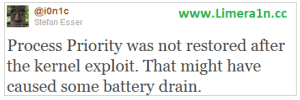
Process Priority was not restored after the kernel exploit. That might have caused some battery drain.
Download redsn0w 0.9.6rc16 for mac from here 
Download redsn0w 0.9.6rc16 for windows from here 
Download pwnagetool 4.3.3.1 for mac here
Posted in iPad, iPhone, iPod | Tagged , , , , , | Leave a comment

Backup Cydia Applications


Every time you upgrade a jailbroken iPhone to a new version of firmware (or iPhone OS), as you know, it is required to go through the whole jailbreak process again. That means, all your iPhone applications and Cydia applications are completely removed. For iPhone applications, you can back them up by syncing via iTunes. But how about those cydia applications? iTunes will not take care this kind of applications. So, how can you backup these apps and restore them after iPhone upgrade?

One way is to use AptBackUp , which is available on cydia. The way how AptBackup works is that it saves a list of Cydia-installed applications, backup the list via iTunes and restore the list back to your iPhone. Later, cydia can refer to that list and install all the applications again.

As reported by some users, however, they just can’t get AptBackup work. Today, I am going to show you a manual way to backup and restore cydia applications. If AptBackup doesn’t work for you, you can use this manual approach to backup and restore the applications.

The manual approach requires you know about SSH. At least, you need to know how you can transfer file between iPhone and computer.

Backup Cydia Application

1. First, make sure you have installed OpenSSH, MobileTerminal and Gawk on your jailbroken iPhone. All these packages can be found on cydia if you miss any of them.

2. Launch Terminal app.

3. In terminal, type “su” and followed by the root password. Please note your password will not be echoed. If you haven’t changed the root password, just key in “alpine” and tap return.

4. Then type dpkg -l | grep ^ii | awk '{print $2}' > /var/root/cydiabkup.txt and then tapreturn key.

5. After you execute the command, it automatically retrieves the list of cydia applications installed on your iPhone and saves it into the cydiabkup.txt.

6. Next, transfer /var/root/cydiabkup.txt from iPhone to your computer using SSH. To let you have an idea of the backup file, here is how the file looks like:

The file just contains a list of cydia of applications you have installed. Later, you will need to use the file again after iPhone upgrade.

Once the cydiabkup.txt is copied to your computer, it is safe to upgrade your iPhone and jailbreak it again.

Restore Cydia Applications after iPhone Upgrade

Okay, now you have completed the iPhone upgrade and I assume you have already jailbroken the iPhone again with cydia installed.

1. Before you can restore the cydia applications, make sure you install OpenSSH, MobileTerminal, Gawk and APT 0.7 Strict packages from cydia. These packages are used during restoration process.

Note: Before you move on, make sure you disable Auto-Lock. You can go to Settings -> General -> Auto-Lock and tap “Never”.

2. Download install-cydia-app.zip and unzip it

3. By using SSH, transfer both “cydiabkup.txt” (the file that you have generated in the backup process) and “install-cydia-app.sh” (the file you just unzip in step 2) to your iPhone under /var/root folder.

4. Launch Terminal app and type “su” to logon as root. Same as before, use “alpine” as password.

5. Next, type sh /var/root/install-cydia-app.sh and tap return key.

6. After running the command, it will automatically download the cydia applications and install them accordingly. When prompt “After this operation, xxMB of additional disk space will be used. Do you want to continue [Y/n]?“, simply key in “Y” and tap return. Depending on the number of cydia apps to install, the process may take five to ten minutes.

7. Once the installation completes, restart your iPhone and all cydia apps should be restored.

Troubleshooting…

Thing normally goes straightforward. But it’s not uncommon you may encounter some hiccups. If you experience errors like Couldn't find package xxxx, that means the cydia application is no longer available for download. What you have to do is to edit the “cydiabkup.txt” on your computer and delete those obsolete packages. Afterwards, transfer the updated “cydiabkup.txt” back to your iPhone and continue with step 4 again.

As always, should you have any questions, please feel free to leave me comment below. If you find other ways to backup and restore cydia apps, feel free to share it with us.

Posted in iPad, iPhone, iPod | Tagged , , | Leave a comment

iPad2 Jailbreak Update


As mentioned before, the iPad2 jailbreak is on the way but it’s taking longer than usual because Apple has increased security on its A5 processor. Fortunately for us, the well-known iPhone hacker Geohot has accepted the challenge between him and Chronic Dev Team’s P0sixninja, but the challenge here is not a normal challenge on just a “jailbreak”. But it’s about who dump the A5 processor first, what does it mean?

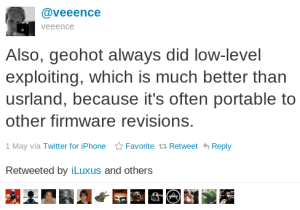
Well, to dump the A5 processors means that you have to find a bootrom exploit which is very difficult to be discovered and developed. As this jailbeak will be low-level exploit, Veeence says it might jailbreak the iPad 2 and the not-released iPhone 5 forever. That would be wonderful, right?

Posted in iPad | Tagged , , , , , | Leave a comment

Configuration for AUBdot1x for various devices


For the many people that have requested this for a long time, well, here it is:

Configuration for iDevices on AUBdot1x:

Step 1: From the springboard, open settings, and click on Wi-Fi.

Step 2: Wait for the list of networks found to load, when AUBdot1x appears, click on the blue arrow to the right of the name.

Step 3: When the new page opens, scroll down to the bottom of the page. You will see something called “HTTP Proxy”, under that there are three buttons, Off, Manual, and Auto. Click on Auto.

Step 4: A white box should appear below the Auto button. Type in it the following: http://autoproxy.aub.edu.lb/autoproxy.pac

Step 5: After typing what you just did, click on the box above HTTP Proxy called Client ID. When you see the cursor there, click on Wi-Fi Networks button on the top left of the screen.

Step 6: Select AUBdot1x. You will be prompted to enter you AUBnet username and password. Do that. Afterwards, you will see a window that has a certificate. Just click on Accept and you’re good to go.

Configuration for Laptops:

Step 1: Connect to the AUBsubscription network.

Step 2: Open an internet browser and navigate to http://aubsub.aub.edu.lb

Step 3: When the page loads, you will see a big red URL in the middle of the screen. Click it. It will prompt you for your AUBnet username and password.

Step 4: When the page loads, select “I Agree” and then provide your date of birth and click next.

Step 5: Follow the on-screen instructions and you’ll be done!

Configuration for Blackberrys:

Unfortunately, Blackberry devices do no support the encryption standard that AUBdot1x must be configured with to work so for the time being, Blackberry devices do not work on AUB’s network. Hopefully RIM will add support to these standards in future OS updates.

Credit to Peter Barbara for suggesting this post

Posted in iPad, iPhone, iPod | Tagged , , , , , , , , | 6 Comments

iPad2 Jailbreak


Many people have been wondering about the jailbreak release date for iPad 2. Unfortunately, the jailbreak is taking longer than usual because Apple has greatly upped its hardware/software, making it harder to bypass.

To understand a little bit more, here is a little explanation in layman’s terms:

Jailbreaking an iDevice means gaining access of the root read/write permissions, which means you can choose what apps you want to run on your device (not just the apps available on the App Store). In order to untether an iDevice, some modified code must be inserted into what is known as the bootrom. The bootrom is a snippet of code that runs at startup time, and checks on the status of the boot image. It’s generally used to verify that the image has not been corrupted, but can also be used to check for unauthorized firmware. The 24kpwn exploit – otherwise known as 0x24000 Segment Overflow – bypassed the signature checks on iBoot and allowed unsigned firmware to be loaded.

So you might be thinking now, well ok, find the bootrom, and insert the modified code in it and there you go. Well, that may be the case, however, hackers have recently discovered that in the new A5 chips (the iPad2’s processor), the bootrom simply isn’t there! This gives rise to a popular theory that once the A5 bootrom is off, it stays off until power cycle. So this means that the bootrom is actually inside the A5.

So, bottom line, is that to gain access to the bootrom, some reverse engineering is required, and that is what is taking time. However, there is a silver lining here: Since all new iDevices will have the A5 chip in them, once the iPad2 is successfully jailbroken, so will all the others. This means that a possible untethered jailbreak for iPhone 5 might be available before the actual iPhone 5 is released!

Stay tuned to learn more about the ETA of the jailbreak. At least you now understand what is the hold up.

Important Note : If you own iPad 2 running iOS 4.3, you have to keep it and don’t upgrade to later versions (4.3.1, 4.3.2), as the upcoming iPad 2 jailbreak may land at the beginning on iOS 4.3. Please let your friends know this important advice.

Posted in iPad | Tagged , , , , , | 1 Comment

Apple Pushes iOS 4.3.2


A few hours ago, Apple pushes iOS 4.3.2 for supported devices on its servers. Here’s some good news regarding the newly released iOS 4.3.2. In the beginning you have to know that Apple developers had finished from developing iOS 4.3.2 on April 4 , this is the date of releasing PwnageTool 4.3 and Redsn0w 0.9.6rc 9 untethered jailbreak for iOS 4.3.1 which based on i0nic’s untethered exploit.

What that mean? This means that iOS 4.3.2 may be susceptible for an untethered jailbreak using PwnageTool 4.3 and Redsn0w 0.9.6rc12. Till now there’s now official word from i0n1c, so we’re waiting for him to test it and let us know what happens. In the meantime, do not update to 4.3.2 as you will lose your untethered jailbreak and possibly your ultrasn0w unlock.

Posted in iPad, iPhone, iPod | Tagged , , , , , , , , | Leave a comment