SBsettings – Toggle options on/off in record time


Tired of having to go through a series of steps just to toggle wifi and other settings on or off on your iPhone? Well, here’s the solutions: SBSettings

SBsettings is a horrible looking menu that allows you to toggle certain features on or off with just one swipe (Horrible, that is, until you install a theme. I’ll get to that later)

To get SBsettings, follow these steps:

Step 1: Add this source to Cydia http://apt.bigboss.org/repofiles/cydia (in case its not added)

Step 2: After the sources refresh, search for SBsettings and install it.

Step 3: After you respring your device, swipe your finger across the time in the status bar. You will notice that SBsettings has a horrible built in theme. To fix this, open cydia again and search for Apple congruency. This is a theme for SBsettings.

Step 4: After you download this theme, swipe your finger again to activate SBsettings and click on the button More. This will exit SBsettings and open a window. Click on SBsettings Theme and select Apple congruency. Now press the home button and wait for 5 sec. Your device will respring. Once it resprings, you will notice that theme you just applied transformed SBsettings into a menu similar to the notifications that come built in with iOS.

Posted in iPad, iPhone, iPod | Tagged , | Leave a comment

Celeste – iPhone Bluetooth Solution


Remember back in 2007, when the first iPhone appeared? What was the first thing that immediately came to mind once you finished reading the spec list? “Damn… doesn’t support media transfer via bluetooth”.

Well, those days are over. ‘Celeste’ brings apple quality bluetooth sharing to your iPhone, a service that arrived a little too late but thankfully did.

To get Celeste, just follow these steps:

Steps 1: Add http://sinfuliphonerepo.com/ to cydia.

Step 2: After the sources refresh, search the sinful iphone repo source for celeste and download it.

That’s it! Celeste integrates itself into iOS. It also integrates itself into SBsettings quite nicely, with a toggle that must be used to switch the service on or off.

Just a little note, Celeste currently only works on iOS 4.2.1, it is not supported by any iOS lower than that, and is broken on iOS 4.3 and above. The team behind Celeste is working on this and trying to push out a fix as soon as possible.

Posted in iPhone | Tagged , , , , , , | Leave a comment

WARNING! New Virus for iOS 4.x Spreads On The Web


The distribution of the destructive virus happens with an App from internet pages about a Fake Unlock presentation called: “UNLOCK NOW FREE”. DON’T go to this page from an iOS device (iPhone, iPad, iPod touch), if you do this, however, you’ll see -10-15 seconds of an animation followed by the text: “DOWNLOAD UNLOCK 2 NOW FREE”. Then it’s already too late and your information will be cleared (SIM and idevice information).

If you search information about Jailbreak or Unlock for iPhone or iPad –> search this information from Mac or PC, but don’t do it from your iOS device.

If you are searching for information about Jailbreak or Unlock for iPhone or iPad from an iDevice make sure you search on trusted sites (examples: joesolutions.net, blog.iphone-dev.org, ikeygen.com, ih8sn0w.com, chronic-dev.org)

To stop this virus it is necessary to inform all internet users as soon as possible so this virus gets NO chance to survive…

Posted in iPad, iPhone, iPod | Tagged , | 1 Comment

Push Doctor


I’m pretty sure that after you’ve jailbroken and unlocked your iPhone, you noticed that WhatsApp notifications only appear when you actually open the application. This happens because you device does not have official apple certificates from apple servers.

So you’re probably thinking: oh crap. Well don’t say that, not just yet.

A clever compilation of code has been written that give your hactivated device official certificates. To get these certificates, just do this:

Step 1: Open Cydia and and the following source: http://cmdshft.ipwn.me/apt/ This will add a repository in Cydia called Nerv Repo.

Step 2: From this new repo, search for Push Doctor and download it. The file is about 15 MB so if your download is not close to that, you are probably downloading a wrong file.

Once Push Doctor finishes downloading, it will integrate itself in your iOS and then ask for a reboot.

You’re Done!

P.S. Some notes:

-Sometimes your push notifications will not immediately work. Give it up to 24 hours. This is due to the fact that your iDevice is spoofing the certificates and that takes time.

-If after 24 hours you are still facing problems, try reinstalling the apps that use push (mainly whatsapp)

-If still no luck, try reinstalling Push Doctor.

Good Luck

Posted in iPad, iPhone, iPod | Tagged , , , | Leave a comment

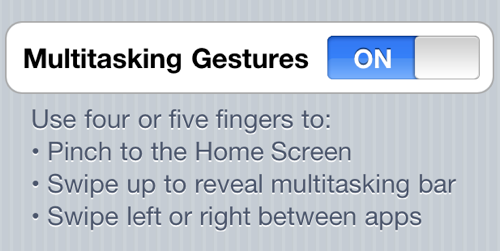
Add MultiTouch Gestures to iPhone 4 THE EASY WAY


This feature never found its way into the final release unless you use Xcode and turn your iDevice into developer hardware. Now though, that’s not strictly true.

A new tweak is now available on jailbreak store Cydia that will enable the aforementioned multitouch gestures with the tap of a button.

You will, of course, need to have a jailbroken iPhone or iPod touch to install it. Follow our step by step guide posted here to jailbreak your iPhone, iPad or iPod touch with Redsn0w on iOS 4.3.1, or with PwnageTool 4.3, or with Sn0wbreeze on Windows if you haven’t already.

Simply download MT Gestures through the ModMyi repo and activate it inside WinterBoard.

Job Done.

Posted in iPhone | Tagged , , , | Leave a comment

Update iPhone 3G to 4.2.1


Step 1: Make sure you are running the latest version of iTunes.

Step 2: Download your firmware file here and pwnage tool 4.2 from here (if you use mac) or sn0wbreeze 2.2.1 form here (if you use windows)

Step 3: Create the custom firmware using the file you just downloaded.

Step 4: When the custom firmware is complete, your program will prompt you into DFU mode. After that, open iTunes and press option+restore (if you use mac) or shift+restore (if you use windows) and select the custom firmware you just created.

Step 5: After the restoration has finished, download greenpois0n from here.

Step 6: Follow the on-screen instructions. After the iphone reboots, you will find an app called “Loader” on your springboard. Open it, and install Cydia.

Step 7: After installing Cydia, follow my guide on how to add installous and you’re done!

Step 8: Add http://repo666.ultrasn0w.com/ and download ultrasn0w to unlock your phone to any carrier.

Posted in iPhone | Tagged , , , , , , | 2 Comments

Update iPhone 3GS to 4.3.1


Factory Unlocked Phones:

Step 1: Make sure you are running the latest version of iTunes.

Step 2: Backup your information (contacts, messages, camera roll, etc…) in iTunes by plugging in your iphone and right clicking on the iphone icon in itunes and clicking backup.

Step 3: Update your firmware to 4.3.1 by downloading this file

Step 4: Restore your information by selecting the backup you saved in step 1.

Step 5: Download redsn0w 0.9.6rc11 for mac here or for windows here

Step 6: Open redsn0w. Click on browse and find the file you downloaded in step 1. Once redsn0w has finished preparing your jailbreak files, click next.

Step 7: Follow the on-screen steps. Once you have done that, you’re iphone will reboot (it is normal for this to take about 5 min). After your iphone has rebooted, you will find the cydia icon on your springboard.

Locked iphone 3GS on baseband that is unlockable by ultrasn0w:

step 1: Make sure you are running the latest version of iTunes.

Step 2: Download pwnage tool 4.3 (if you use mac)  or sn0wbreeze 2.5.1 (if you use windows)

Step 3: Download this file (This is your firmware file)

Step 4: open either pwnage tool or sn0wbreeze and follow the on-screen instructions to create your custom 4.3.1 firmware file. (you need to do this in order to preserve your baseband, if you update through itunes or directly through the file you downloaded in step 3, your baseband will have updated and you will not be able to use your iphone as a phone. It would just be a very expensive ipod so BE VERY CAREFUL).

Step 5: Using iTunes, restore your iphone to the custom firmware you just created (in mac, open itunes and press option+restore to choose the fiel you want to update your iphone with, in windows press shift+restore).

Step 6: After your iphone hase been updated, jailbreak your iphone using steps 4 to 7 from the above guide.

Step 7: once jailbroken, open cydia and add these two sources by clicking manage -> sources -> edit -> add. The two sources are http://repo666.ultrasn0w.com/ and http://djayb6.com/ (Add each source alone)

Step 8: install ultrasn0w 1.2

Step 9: click on the http://djayb6.com/ source you just added, and install the file that says iphone 3GS ultrasn0w fixer

Locked iPhone 3GS that is on a baseband that is NOT unlockable by ultrasn0w:

Follow all steps as previous guide however, when jailbreaking using redsn0w, also tick the box that says “Install iPad Baseband”. This will update your iPhone to the iPad baseband (6.15.00) which is unlockable by ultrasn0w. Don’t worry, this is a safe method.

Congratualtions! you just updated your iphone 3GS to 4.3.1

Posted in iPhone | Tagged , , , , , | Leave a comment

Adding Installous to Cydia


After you jailbreak your iDevice, you’ll undoubtedly want to download all App Store apps for free. Well, here’s how!

Step 1: open cydia

Step 2: click manage -> sources -> edit -> add

Step 3: add this source: http://cydia.hackulo.us

Step 4: once cydia refreshes, search for installous 4 and download it

Step 5: open installous and start searching for apps to download!

Posted in iPad, iPhone, iPod | Tagged | 3 Comments

Update iPhone 4 to 4.3.1


For my first post, I thought I’d run you through a step by step guide to updating your iPhone 4 to firmware 4.3.1

A few words of caution first, this guide will only work IF you have a factory unlocked iphone or if your baseband is still 1.59.00. If you do not fall in either of these two categories then stop reading as this article will not benefit you.

If, on the other hand, you do fit into one follow these steps:

Factory Unlocked Phones:

Step 1: Make sure you are running the latest version of iTunes.

Step 2:Backup your information (contacts, messages, camera roll, etc…) in iTunes by plugging in your iphone and right clicking on the iphone icon in itunes and clicking backup.

Step 3: Update your firmware to 4.3.1 by downloading this file

Step 4: Restore your information by selecting the backup you saved in step 1.

Step 5: Download redsn0w 0.9.6rc11 for mac here or for windows here

Step 6: Open redsn0w. Click on browse and find the file you downloaded in step 1. Once redsn0w has finished preparing your jailbreak files, click next.

Step 7: Follow the on-screen steps. Once you have done that, you’re iphone will reboot (it is normal for this to take about 5 min). After your iphone has rebooted, you will find the cydia icon on your springboard.

Locked iphone 4 on baseband 1.59.00:

Step 1: Make sure you are running the latest version of iTunes.

Step 2: Download pwnage tool 4.3 (if you use mac) or sn0wbreeze 2.5.1 (if you use windows)

Step 3: Download this file (This is your firmware file)

Step 4: open either pwnage tool or sn0wbreeze and follow the on-screen instructions to create your custom 4.3.1 firmware file. (you need to do this in order to preserve your baseband, if you update through itunes or directly through the file you downloaded in step 3, your baseband will have updated and you will not be able to use your iphone as a phone. It would just be a very expensive ipod so BE VERY CAREFUL).

Step 5: Using iTunes, restore your iphone to the custom firmware you just created (in mac, open itunes and press option+restore to choose the fiel you want to update your iphone with, in windows press shift+restore).

Step 6: After your iphone hase been updated, jailbreak your iphone using steps 4 to 7 from the above guide.

Step 7: once jailbroken, open cydia and add these two sources by clicking manage -> sources -> edit -> add. The two sources are http://repo666.ultrasn0w.com/ and http://djayb6.com/ (Add each source alone)

Step 8: install ultrasn0w 1.2

Step 9: click on the http://djayb6.com/ source you just added, and install the file that says iphone 4 ultrasn0w fixer

Congratualtions! you just updated your iphone 4 to 4.3.1

Posted in iPhone | Tagged , , , , , , | Leave a comment

Hello world!


As requested by many, this blog will provide solutions to most iphone related issues. Please feel free to ask me anything and I’ll try to find a solution for you.

Posted in Uncategorized | 4 Comments