iPhone 4S Battery Drain Issues


So you are the proud owner of the new iPhone 4S. You probably realized that it doesn’t spend much time on and you can’t really enjoy your iPhone due to the battery drain. Well, your only consolation is that you are not alone because the battery problem was published at Apple’s site and about 100,000 get into the post to see how to fix this problem.

So according to a report from TheNextWeb they claim that Apple engineers began contacting iPhone 4S users to help them to fix battery issues, also we have got some news that Apple engineers contacted one of the users, so the customer published a rant complaining about the battery life on his new iPhone, and apparently Apple heard him.

“I then got a call from a senior [Apple] engineer who said he had read my post and was ‘reaching out’ to users for data and admitted this was an issue (and that they aren’t close to finding a fix!) and asked lots of questions about my usage and then asked if he could install the file below and that he would call back the day after to retrieve the info. I extracted the file from my Mac after a sync and emailed it to him. He was incredibly helpful and apologetic in the typical Apple way!”

Posted in iPhone | Tagged , , , , , | Leave a comment

iPhone 4S and iPad 2 running on iOS 5 JAILBROKEN!


iPad 2 and iPhone 4S iOS 5 Jailbreak done successfully. This is very big news. MuscleNerd the well known iPhone hacker and the iPhone Dev-team’s spokesman has just posted a new video showing iPad 2 jailbreak on iOS 5.

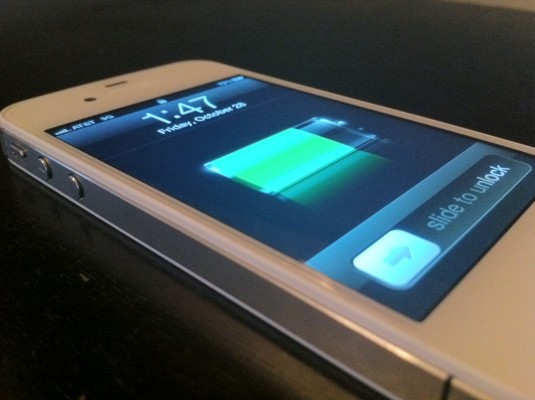
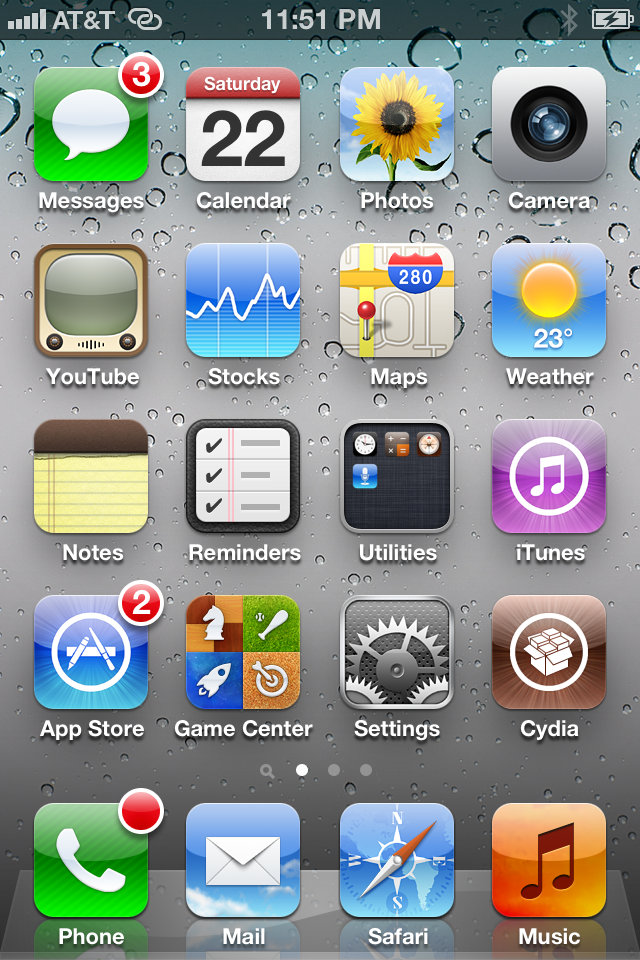
Here are two images, one of the iPad 2 jailbroken, and the other of the 4S jailbroken.

Jailbreak iPad 2 iOS 5 [Video]

MuscleNerd confirmed on Twitter that iPad 2 and iPhone 4S jailbreak on iOS 5 are the same. So the good news for iPhone 4S users that iPhone 4S jailbreak on iOS 5 has the same progress in the above embedded video.

Jailbreak iPad 2 iPhone 4S iOS 5 ETA (Estimate To Arrival) :

Jailbreak iPad 2 and iPhone 4S on iOS 5 has no estimate release date so far as the above video still in very preliminary jailbreak status and lots of hurdles remain. We will update you once more information is available.  Stay tuned!!

Posted in iPad, iPhone | Tagged , , , | Leave a comment

How Steve Jobs Outsmarted The System


Jobs also used to park in the handicapped spots, but that's likely not something he did in good faithJobs also used to park in the handicapped spots, but that’s likely not something he did in good faith
After churning up countless theories about why Steve Jobs’ Mercedes SL55 AMG never had a license plate fitted, the mass media can finally lay all rumors to rest, as one person with knowledge of the matter decided to reveal the truth about the whole ordeal, once and for all.
As it turns out, Jobs neither paid regular fines, nor did he have any special permit emitted by the state of California to drive plateless. He actually did it legally!

According to Jon Callas, CTO of Entrust and former Apple employee (quoted by ITWire), Jobs ‘rode’ on a loophole in the California vehicle laws by which anyone with a brand new car can take as much as six months to fit the plates before getting slapped on the wrist by the authorties.

So what did Jobs do? He signed a deal with his leasing company to get an identical car once every six months. Brilliant!

Posted in iPad, iPhone, iPod | Tagged , , , , , , , | Leave a comment

Fix iOS 5 iBooks Crash on a Jailbroken iDevice


Many people who have jailbroken their iPhone, iPad or iPod touch on iOS 5 are reporting issues with iBooks crashing on their jailbroken devices. Follow this tutorial to fix iBooks crashing issue on jailbroken iOS 5 devices.

How To Fix iBooks Crashing Issue On Jailbroken iOS 5:

Step 1: Uninstall iBooks and then reinstall it. Don’t launch app after it finishes downloading.

Step 2: Launch iFile. You can get it from Cydia if you don’t already have it.

Step 3: Copy iBooks.app from here: /var/mobile/Applications/iBooksFolder/ to here: /Applications.

Step 4: Tap /Applications/iBooks.app/info.plist and open it in property list editor. Tap on CFBundleIdentifier and rename com.apple.iBooks to com.apple.iBooksFix

Step 5: Close iFile and respring your iPhone, iPad or iPod touch.

Step 6: After respringing there will be two iBooks icons on Home screen. Uninstall the one with rounded corners and keep one that has a square icon.

Do keep in mind that after this procedure you will not be able to purchase books from the iBooks store or transfer your existing purchases from iTunes. You will have to manually sync you books to your device so that they can be read using iBooks app.

How To Manually Transfer Books To iBooks App:

– Open iFile and tap the WiFi button on the bottom.

– Launch any web browser on your computer and enter this address: http://iphone.local:10000/.

-Navigate to var/mobile/Documents.

Clicking on Choose File will enable you to upload the books you want to iBooks.app, the format for these books is .epub.

Simply upload your .epub files from here and then go to the var/mobile/Documents path from iFile on your jailbroken device.

Here, tapping on the .epub files that you just uploaded will open the relevant book in the iBooks.app and now iBooks on your jailbroken iOS 5 device will not crash.

Posted in iPad, iPhone, iPod | Tagged , , , , , , | Leave a comment

New SMS/Location Tweak for Jailbroken iDevices


Ever been sitting somewhere you can’t talk and received an message asking you where you are? Tired of having to type exactly where you are? This should solve your problem!

Send My Location is a new iOS tweak that will quickly SMS a Google Maps link to your location from the native Messages app.

Send My Location allows you to quickly send your current location directly from Messages.app. Indeed it replaces the Edit button by a Send Location button which will open a compose panel. Location is written as an URL that will open Maps.app. 

You can download the tweak for free from the Big Boss Cydia Repository.

Posted in iPhone | Tagged , , , | Leave a comment

Siri Ported To iPad


Hackers worked very hard to get Siri on iPad and they successfully ported Siri to the iPad, and of course we told you before that Siri get’s ported to iPhone 4 too by @stroughtonsmith, so Today a new developer called @jackoplane he has advanced a little forward by managing to get Siri working on the iPad 1. Here are the screenshots from his iPad 1.

Posted in iPad | Tagged , , | Leave a comment

Ever Wondered Why Siri Is A Female?


In case you have got your iPhone 4S and enjoyed with Siri, you might have known that Siri has a female’s voice. In case you’ve asked Siri some sexually questions such as “What are you wearing?”, you’ll get a female-related answer.

Siri Female

Most of computers voice is a woman for a biological reason. CNN’s Brandon Griggs explains:

It’s much easier to find a female voice that everyone likes than a male voice that everyone likes,” said Stanford University Professor Clifford Nass, author of “The Man Who Lied to His Laptop: What Machines Teach Us About Human Relationships.” “It’s a well-established phenomenon that the human brain is developed to like female voices.”

Research suggests this preference starts as early as the womb, Nass said. He cites a study in which fetuses were found to react to the sound of their mother’s voice but not to other female voices. The fetuses showed no distinct reaction to their father’s voice, however.

Also Apple commented about Siri’s female voice:

An Apple spokeswoman declined to comment on why the company gave Siri a female voice in the U.S. Nor would she say why Siri speaks like a man in the UK, where iPhone 4S owners have swarmed online forums to request a female voice instead. “Eww!! Hope UK gets female voice soon,” wrote one commenter. “I don’t think anyone in the US cares about male voice option.

Posted in iPhone | Tagged , , , , | Leave a comment

Beware Fake Untethered Jailbreak Tool Surfaces!


A few days ago, we heard a huge number about fake tools that appear at the internet, like the tool which called FastRa1n which said that it can jailbreak iOS 5, and that’s of course clearly wrong after MuscleNerd warned, so today International Business Times reported saying that a lot of people got scammed by some people and payed for them in order to get an untethered jailbreak for iOS 5…

International Business Times:

“A tethered jailbreak, dubbed Redsn0w 0.9.9, is released by Dev-team while an untethered version is out from FastUnlockiPhone.com named FastRa1n 0.5.
The first doubt strikes iOS 5 users when FastUnlockiPhone.com charges $24.99 for the untethered jailbreak. And the second one comes when they read a comment from a Dev-team confirming the untethered jailbreak a fake.”

Even though the tethered Redsn0w seems to be completely authentic as it is free for download and comes from the Dev-team which has been making programs to jailbreak iOS for time and time again, the credibility of FasRa 1n is in questions.

So I just want to tell all users who are reading this post not to follow any fake jailbreak sites, just follow the Dev-Team… Because you may also get scammed like other people. Let us know if you found any fake tools appear in the sites…

Posted in iPad, iPhone, iPod | Tagged , , , , , , , , , | Leave a comment

UPDATE: SemiTether has been updated


SemiTether has been updated to fix some issues.

“I updated to 0.7.9. This version will take about 90 seconds after it first boots up and then your device will respring again. This timing was the only way to get some of the launch daemons to properly relaunch.”

SemiTether 0.7.9 should fix issues for some of you where:

1) Device does not sync with itunes and only errors. Hopefully solved.
2) Device reboots after 2-3 minutes.

Here is a video guide:


Posted in iPad, iPhone, iPod | Tagged , , , , , , | Leave a comment

iOS 5 SEMITETHERED JAILBREAK RELEASED!!!


BigBoss has announced the release of Semitethered jailbreak solution for iOS 5.

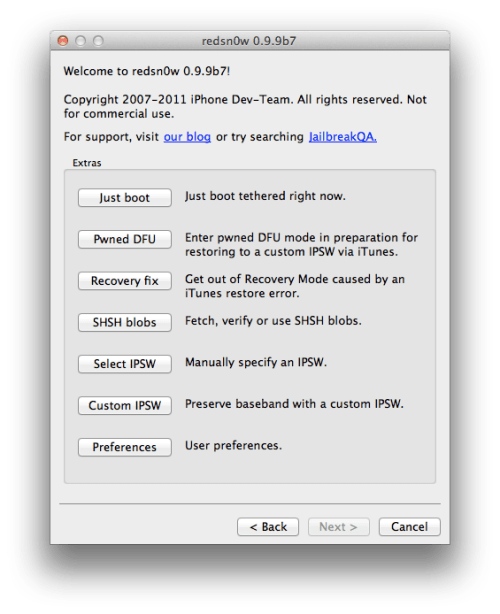
As you may know, iOS5 currently has a tethered jailbreak. This means that after you have jailbroken and installed most stuff you care about, you go to reboot your device, and it will no longer boot. You will be either stuck at apple logo forever, or you will get to itunes restore screen. When this happens, you have to hook up to your computer and use redsn0w “just boot” feature which gets you rebooted successfully again.

“To get us through this period, I have worked on a semi-tethered solution. The semi-tethered jailbreak will allow you to reboot on the road, but with limited functionality. It is enough that you are no longer stranded, and you can use your phone, text, and many other features. This is just until you get home and can use redsn0w again to “just boot tethered”. Once you do that, you’re back to fully functional state.”

Below is a list of what can be done with a semi-tethered jailbreak. Remember this is only if your phone accidentally powers off and you don’t have access to RedSn0w to boot tethered.

1) Can use phone, sms (text messages)
2) Can use every other stock app on iphone.
3) Cannot use mobile safari
4) Can use other appstore web browsers such as atomic web browser
5) Cannot use mail app. You could install a gmail app from appstore or such instead.
6) You cannot use any jailbreak tweak, app, cydia until you boot tethered.
7) While in the semitether booted state, you should not add a jailbreak ios5 notification such as sbsettings to notifications during this state or your device will be stuck in a respring loop until you get home to “boot tethered”.

Clearly this is far better than being stuck at the Apple logo until you can reach a computer.

Here are instructions on how to semitether you iDevice running on ios 5:

Step One
Jailbreak and boot your device tethered using the instructions below:

● iPhone 4 (Mac, Windows)
● iPhone 3GS (Mac, Windows)
● iPhone – No Baseband Update (Mac)
● iPod Touch 4G (Mac, Windows)
● iPod Touch 3G (Mac, Windows)
● iPad 1 (Mac, Windows)

Step Two
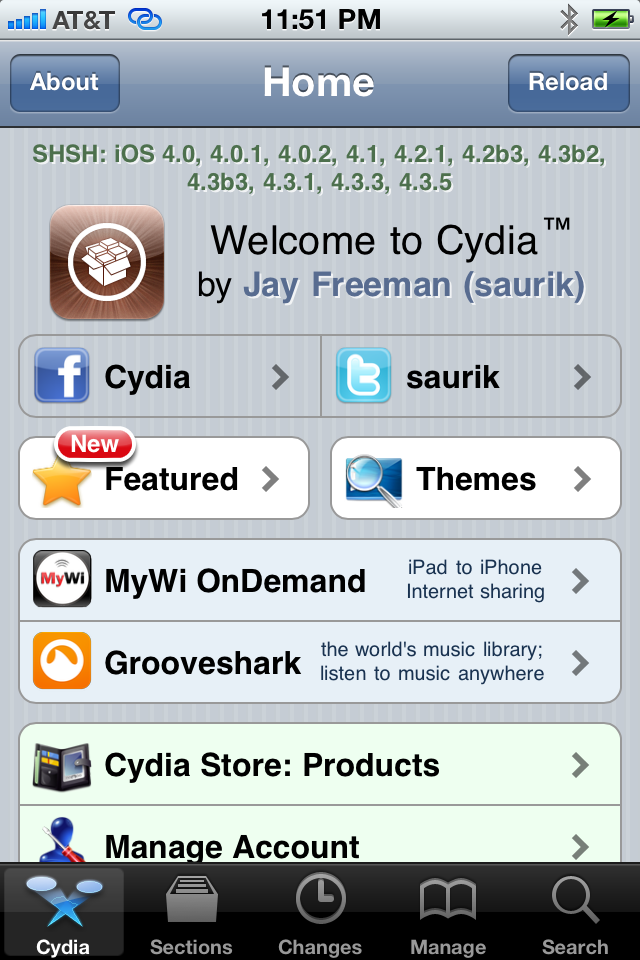
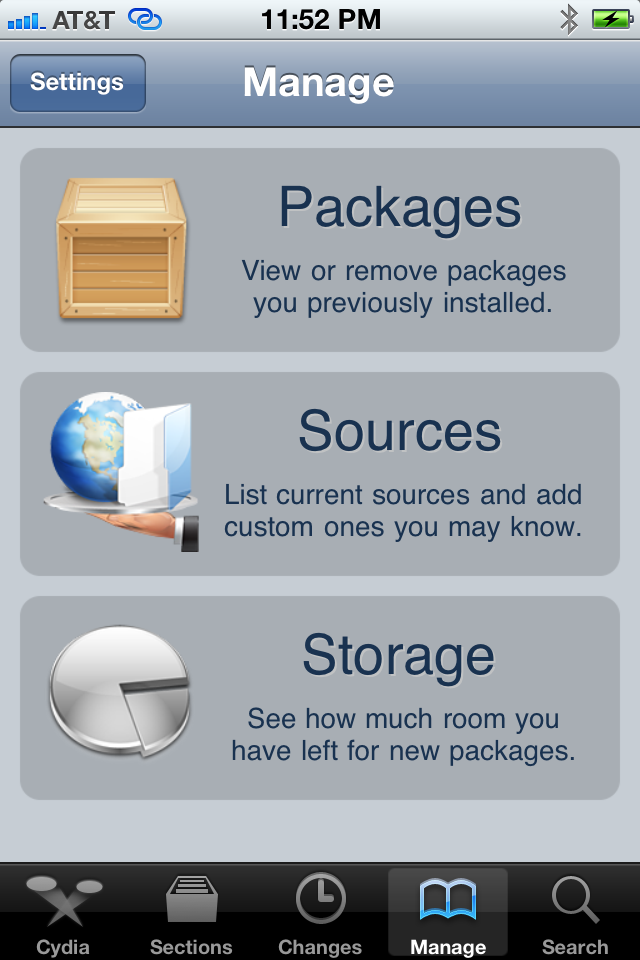
Press to launch Cydia from your Springboard.

Step Three
Press to select Manage from the tabs at the bottom of the screen.

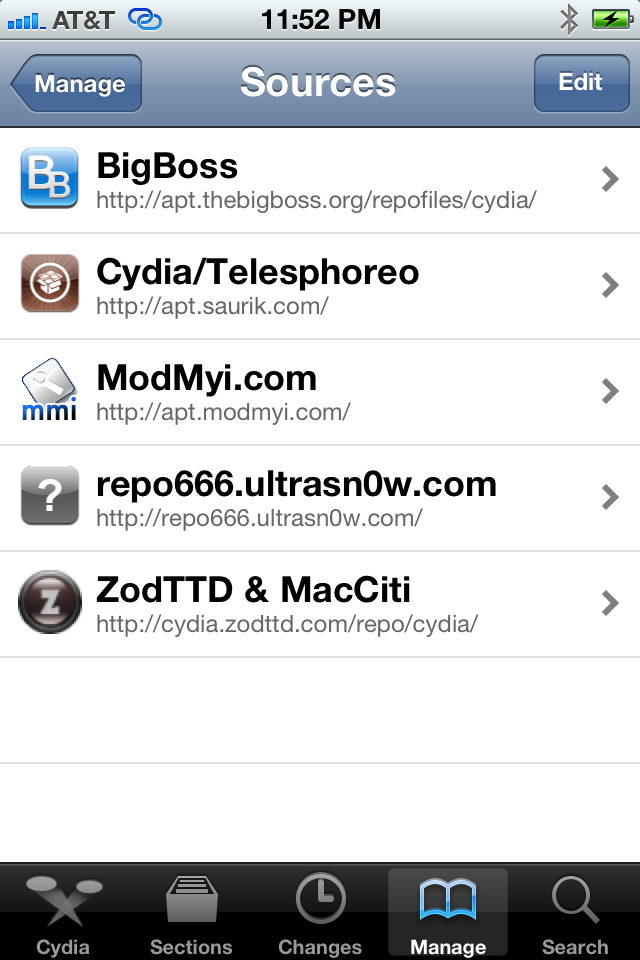
Step Four
Press the large Sources button.

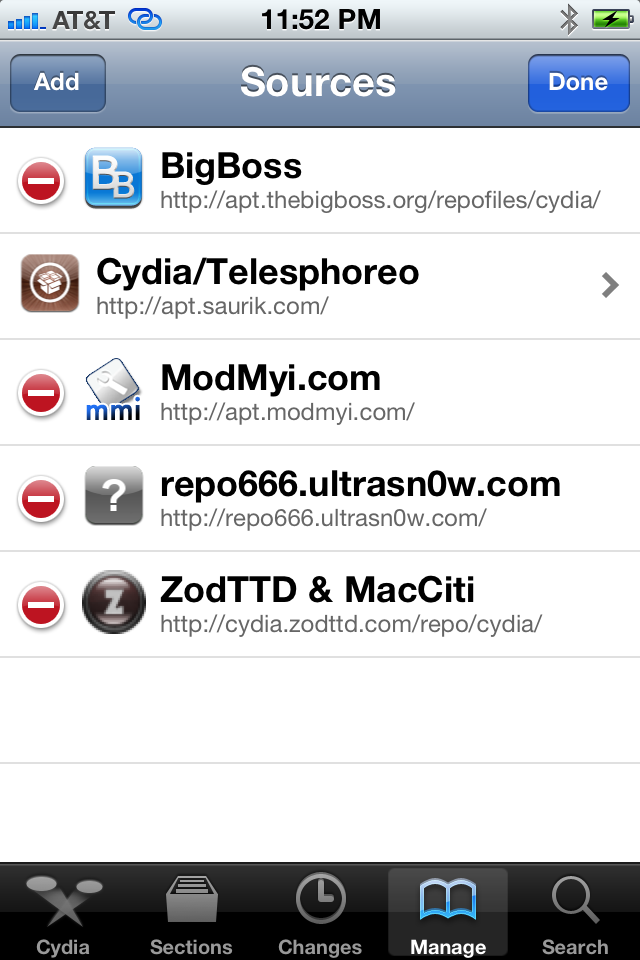
Step Five
Press the Edit button at the top right of the screen.

Step Six
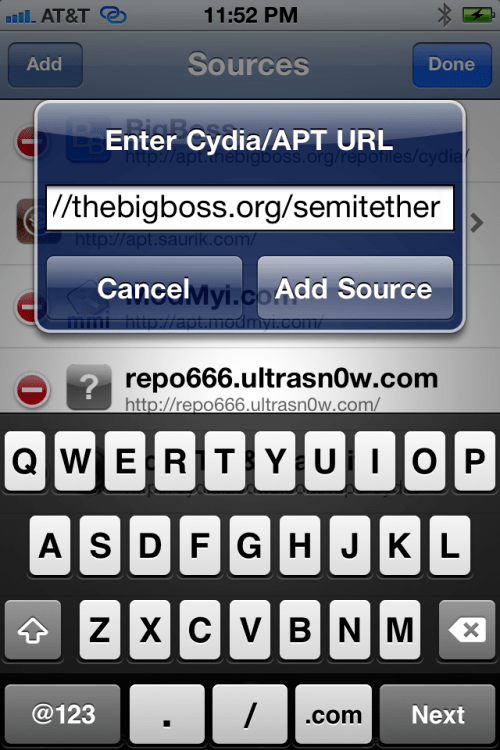
Press the Add button at the top left of the screen.

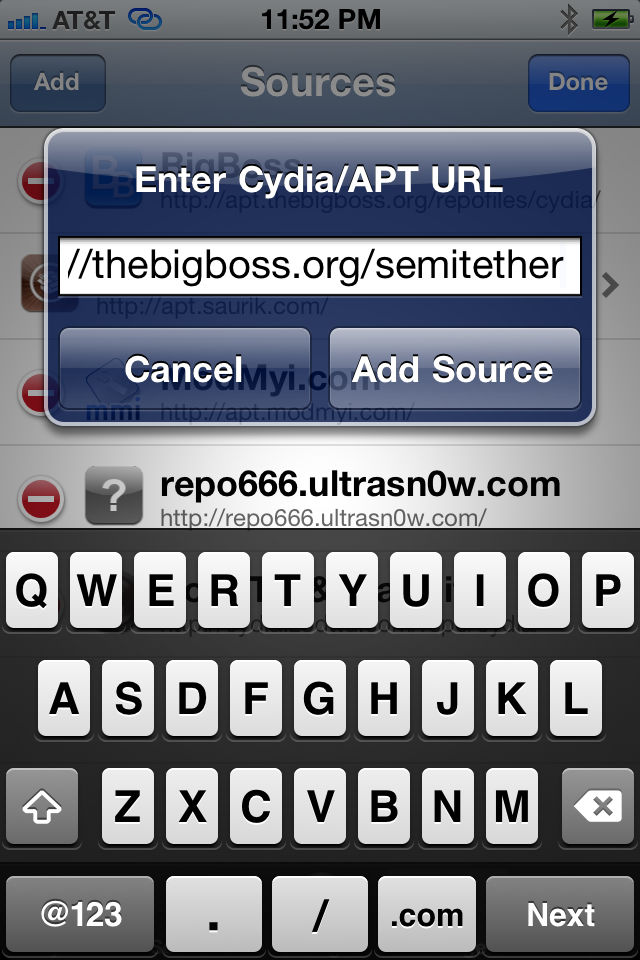
Step Seven
Input http://thebigboss.org/semitether into the text field and press the Add Source button.
Step Eight
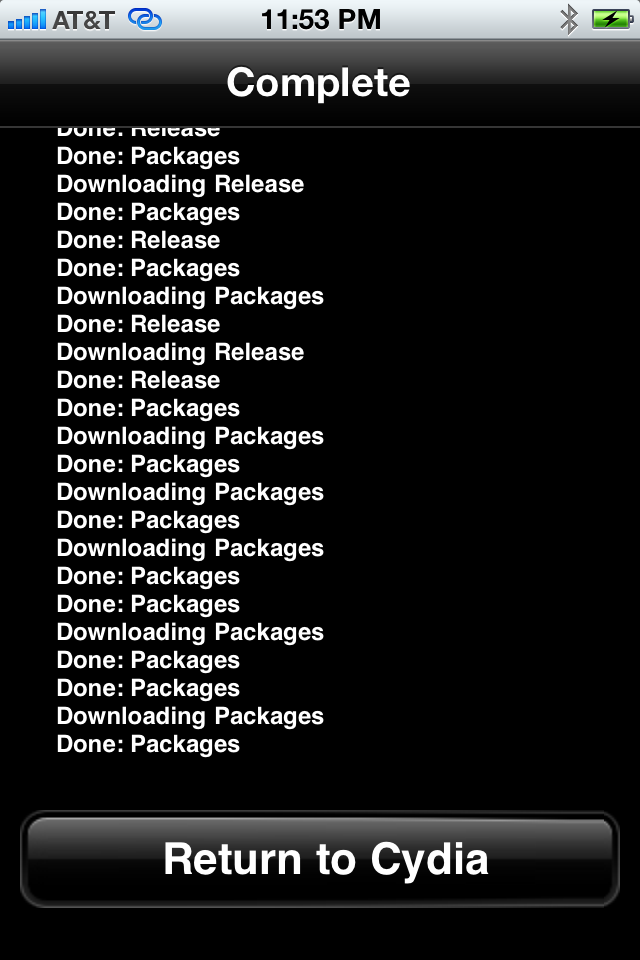
Press the large Return to Cydia button.

Step Nine
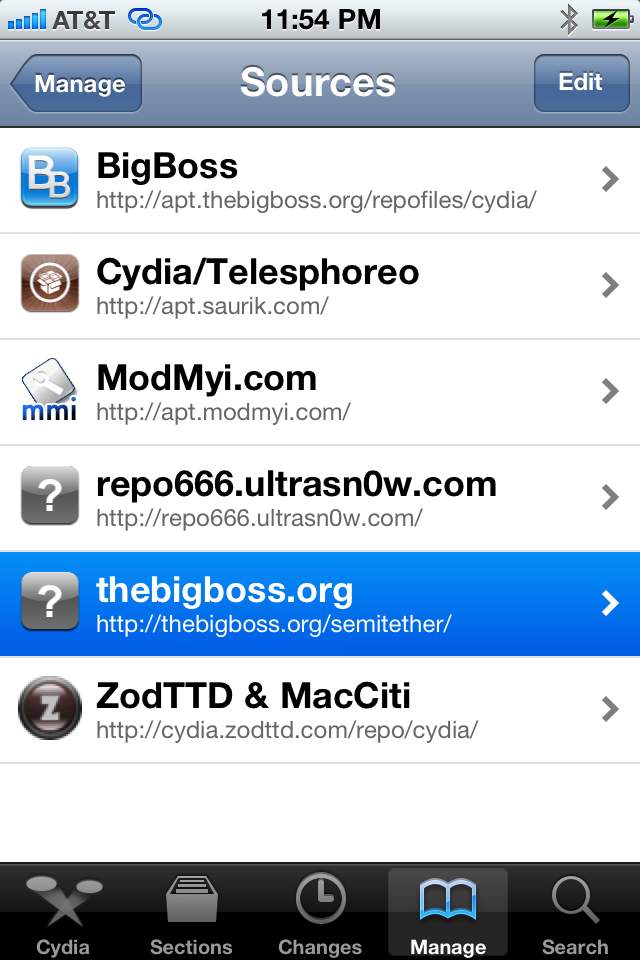
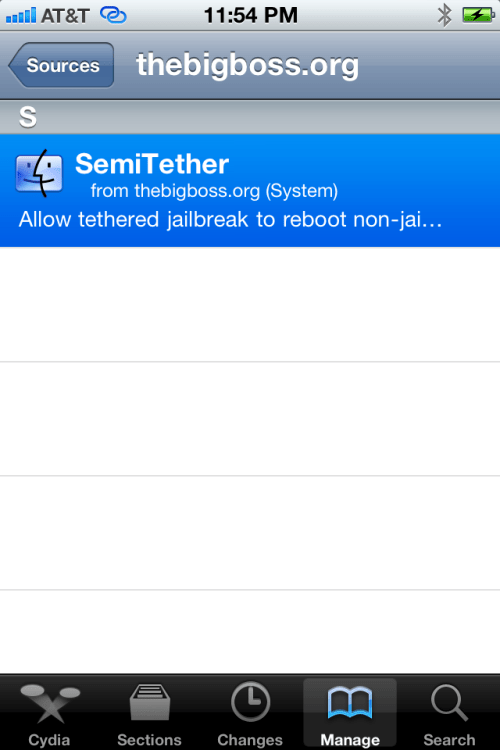
Select thebigboss.org from the list of Sources

Step Ten
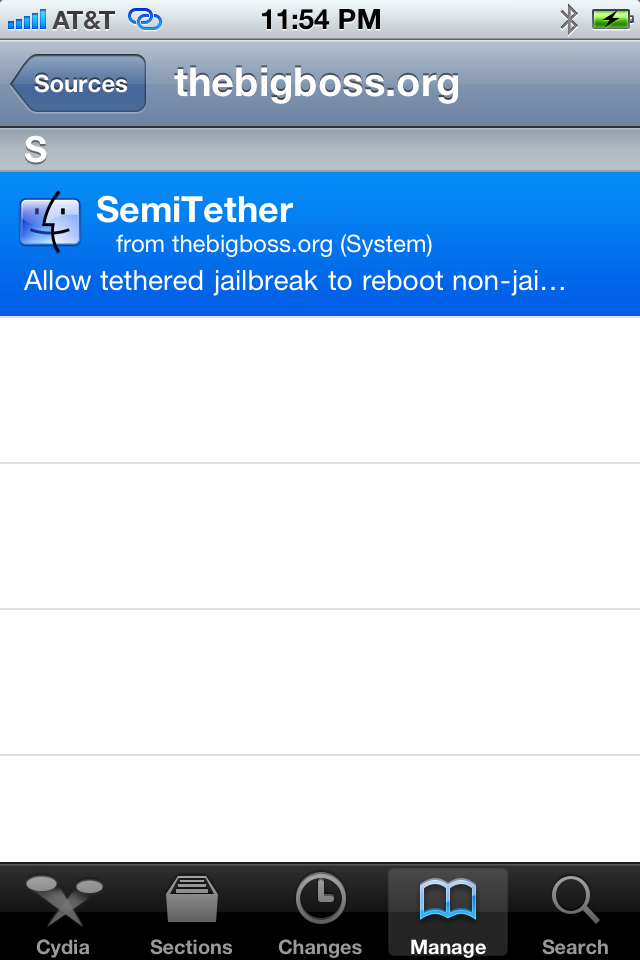
Select SemiTether from the list of Packages
Step Eleven
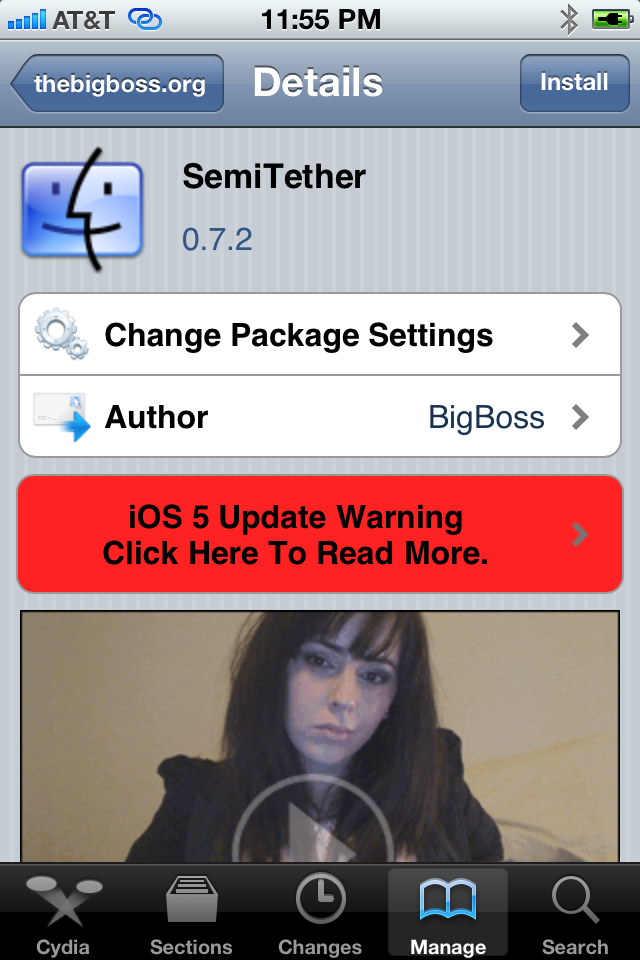
Press the Install button at the top right of the screen.

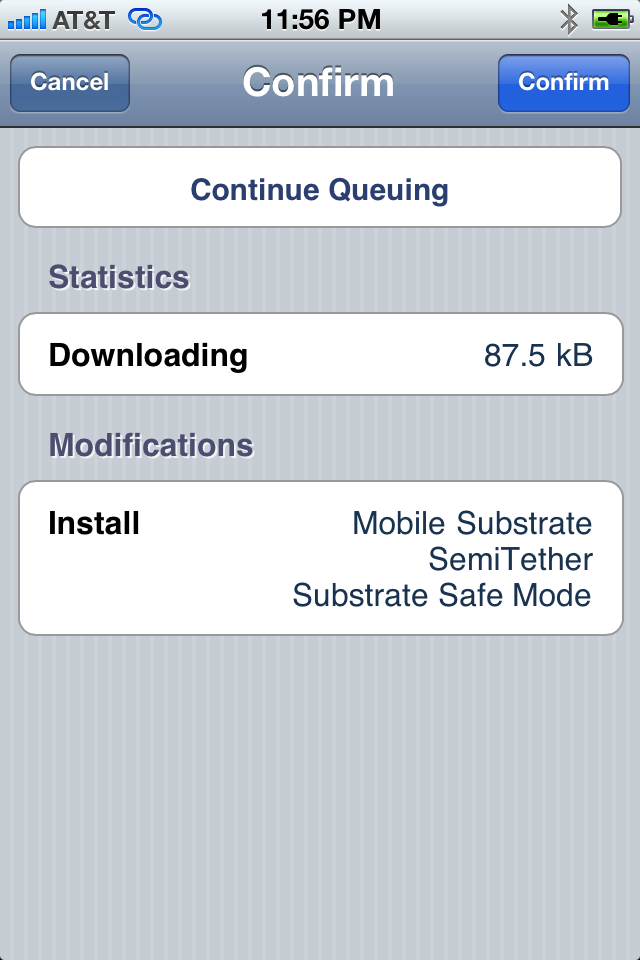
Step Twelve
Press the Confirm button to begin installation.

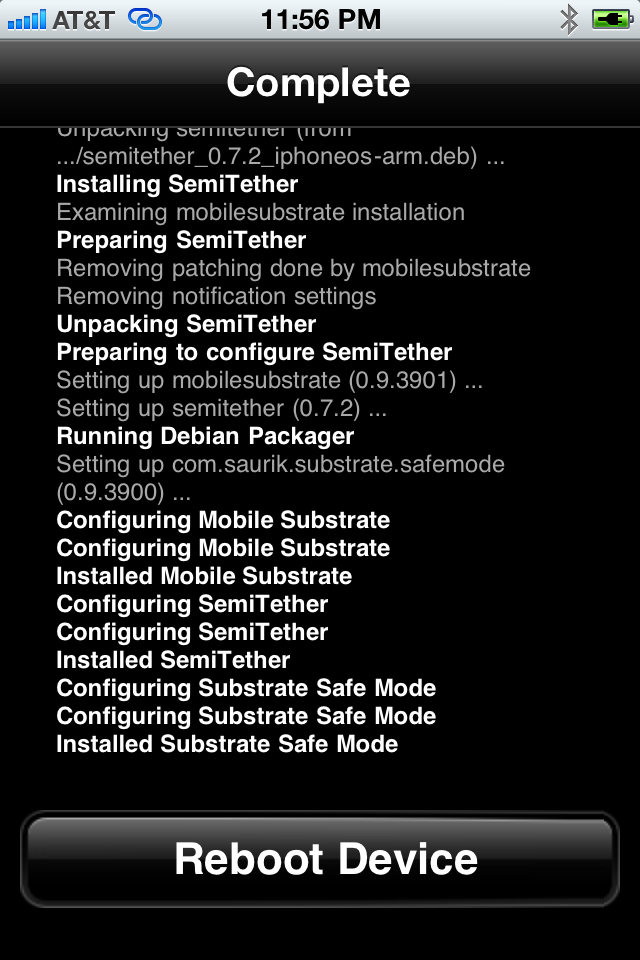
Step Thirteen
Press the large Reboot Device button.

You’re device will now reboot without stalling at the Apple logo!

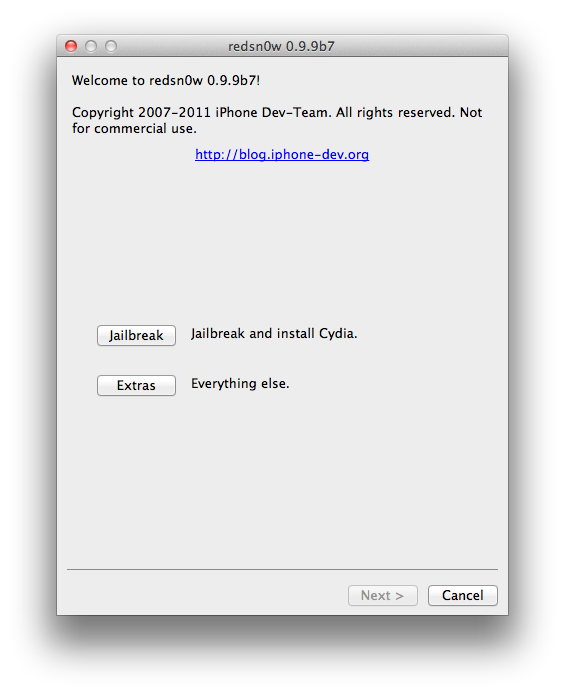
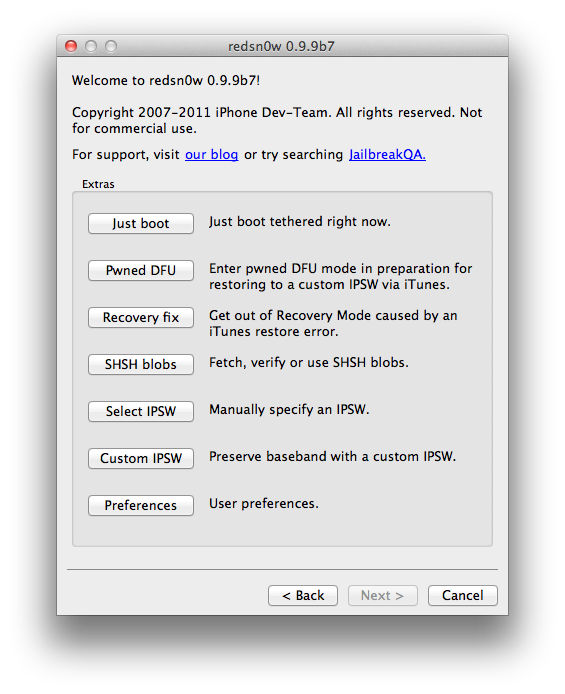
To get full functionality back you will need to boot tethered. Launch RedSn0w as you did in Step One then select Extras then Just boot from the menu.

**A big thanks to BigBoss and all those who made this tutorial possible.

Posted in iPad, iPhone, iPod | Tagged , , , , , , , , , , | Leave a comment